Resolution Steps
Step 1: Open Microsoft Edge Settings
Open Microsoft Edge.
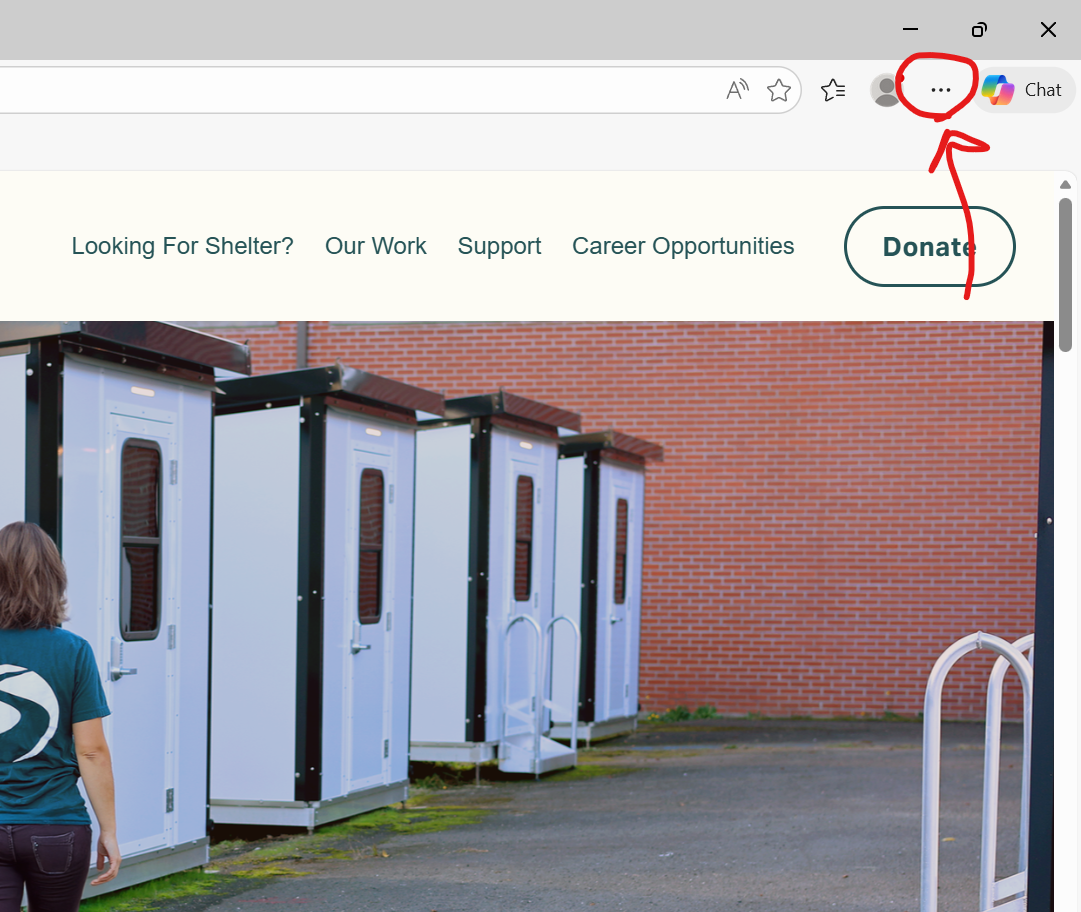
Click the three dots (⋯) in the upper‑right corner of the browser window.
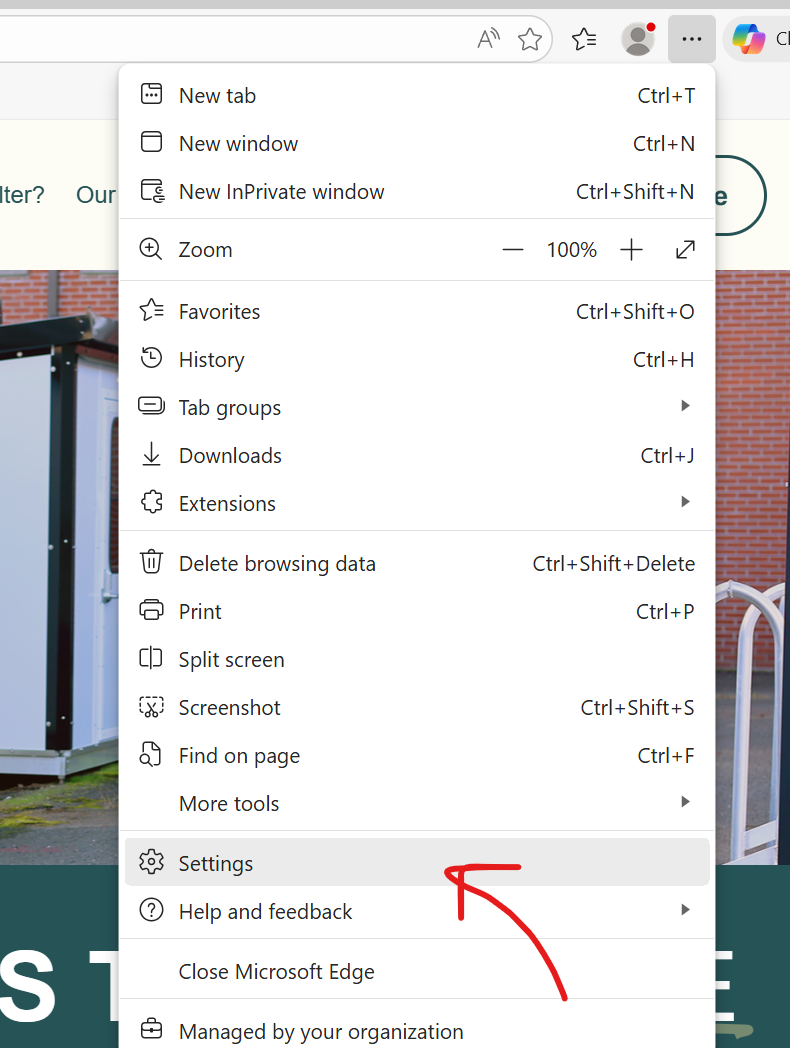
Select Settings.
Step 2: Navigate to Privacy Settings
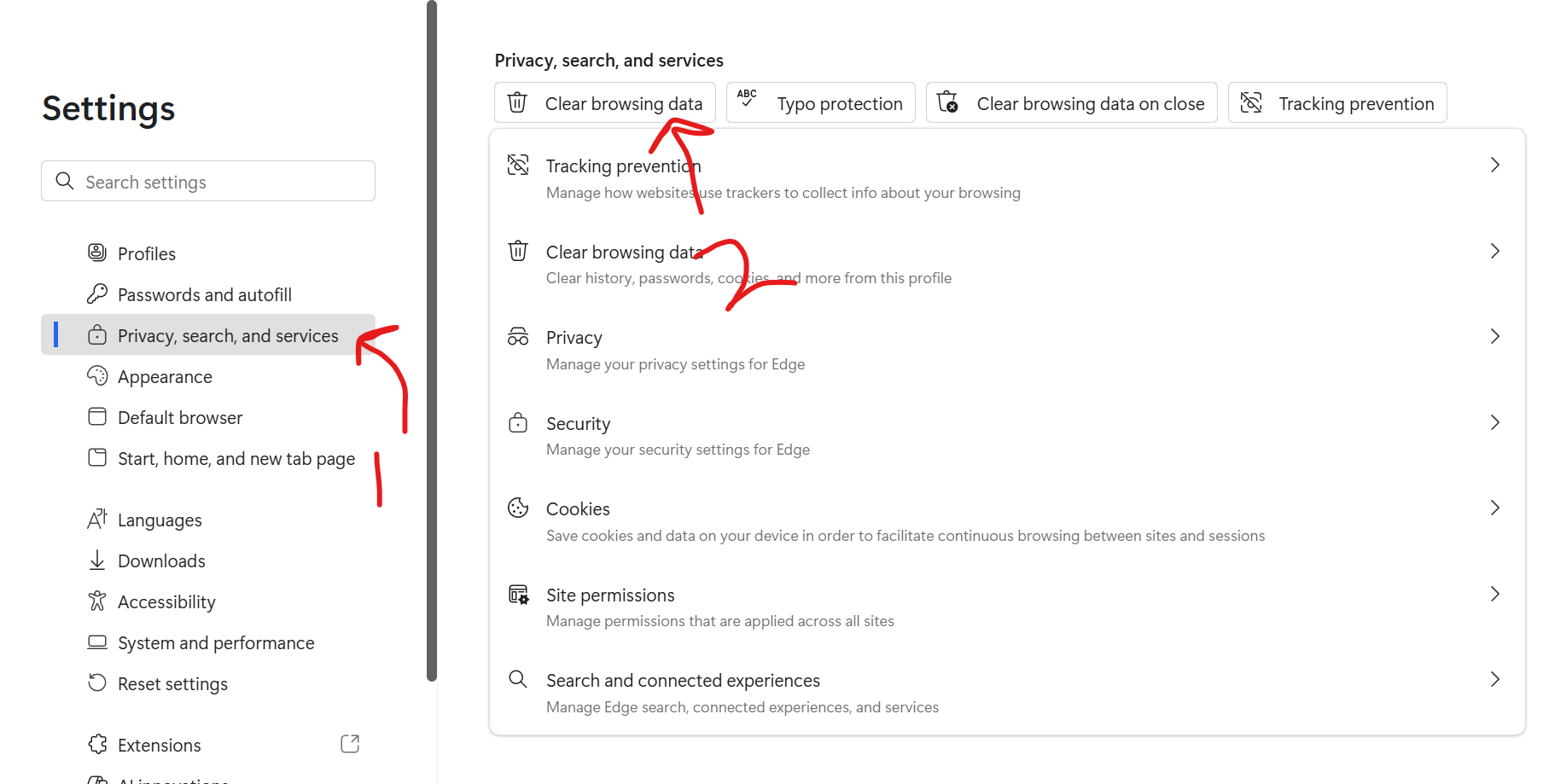
In the left navigation menu, select Privacy, search, and services.
Locate the Clear browsing data section.
Click Choose what to clear.
Step 3: Clear Cookies, Cache, and All Site Permissions
Staff must clear all site permissions, not permissions for a specific site.
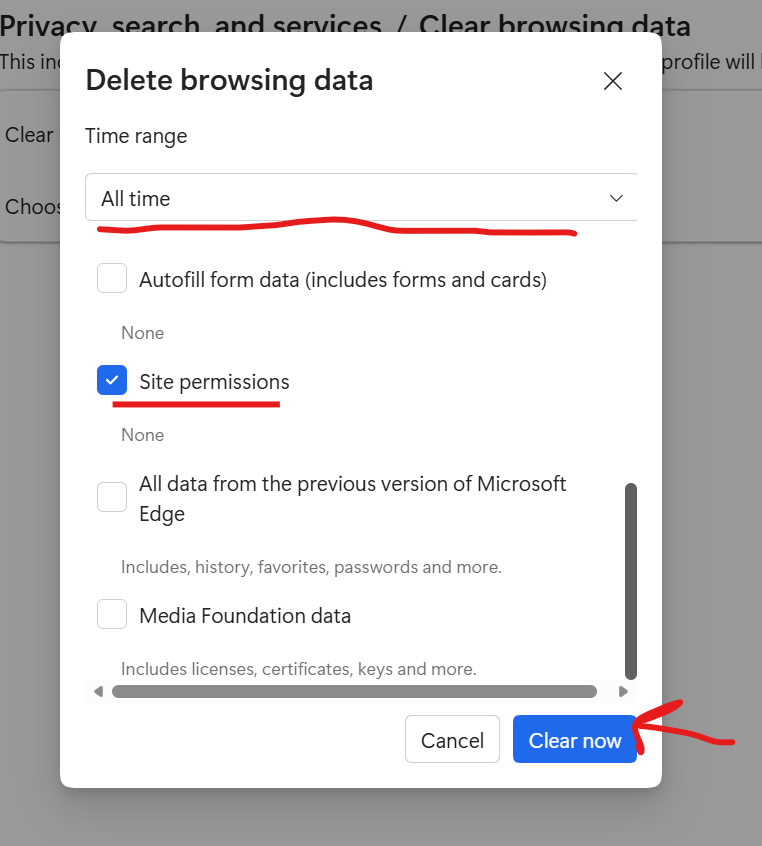
In the Delete browsing data window, set Time range to All time.
Select the following options:
Cookies and other site data
Cached images and files
Site permissions
Click Clear now.
This removes previously blocked or saved permissions so the Topaz signature device can request access again.
Step 4: Return to the Signing Page and Test Topaz
Navigate back to the website where the Topaz signature pad is used (most commonly CaseWorthy).
Open the document or form that requires a signature.
Click the drop-down arrow next to Add Signature.
Select Add Signature (Topaz).
When Microsoft Edge prompts you to allow access to the Topaz device, select Allow.
⚠️ Selecting Block will prevent the Topaz Signature Pad from functioning.
This step confirms that clearing cookies, cache, and permissions successfully reset the browser and allows the Topaz device to connect.
Verification
After completing the steps above:
The Topaz signature window should appear.
The signature pad should capture input.
A test signature should complete without errors.
Troubleshooting
If the signature pad still does not function:
Ensure the Topaz device is securely connected.
Disconnect and reconnect the USB cable.
Restart the computer.
Contact IT Support if the issue persists.
Was this article helpful?
That’s Great!
Thank you for your feedback
Sorry! We couldn't be helpful
Thank you for your feedback
Feedback sent
We appreciate your effort and will try to fix the article