Follow the steps below to remove an existing email signature and prevent it from being added to new messages.
Open Outlook on the Web
- Navigate to Outlook.com in your web browser and sign in with your account credentials.
Access Settings
- Select the Settings icon (gear icon) in the upper-right corner of the Outlook window. A settings panel will open on your screen.
Open the Email Signature Settings
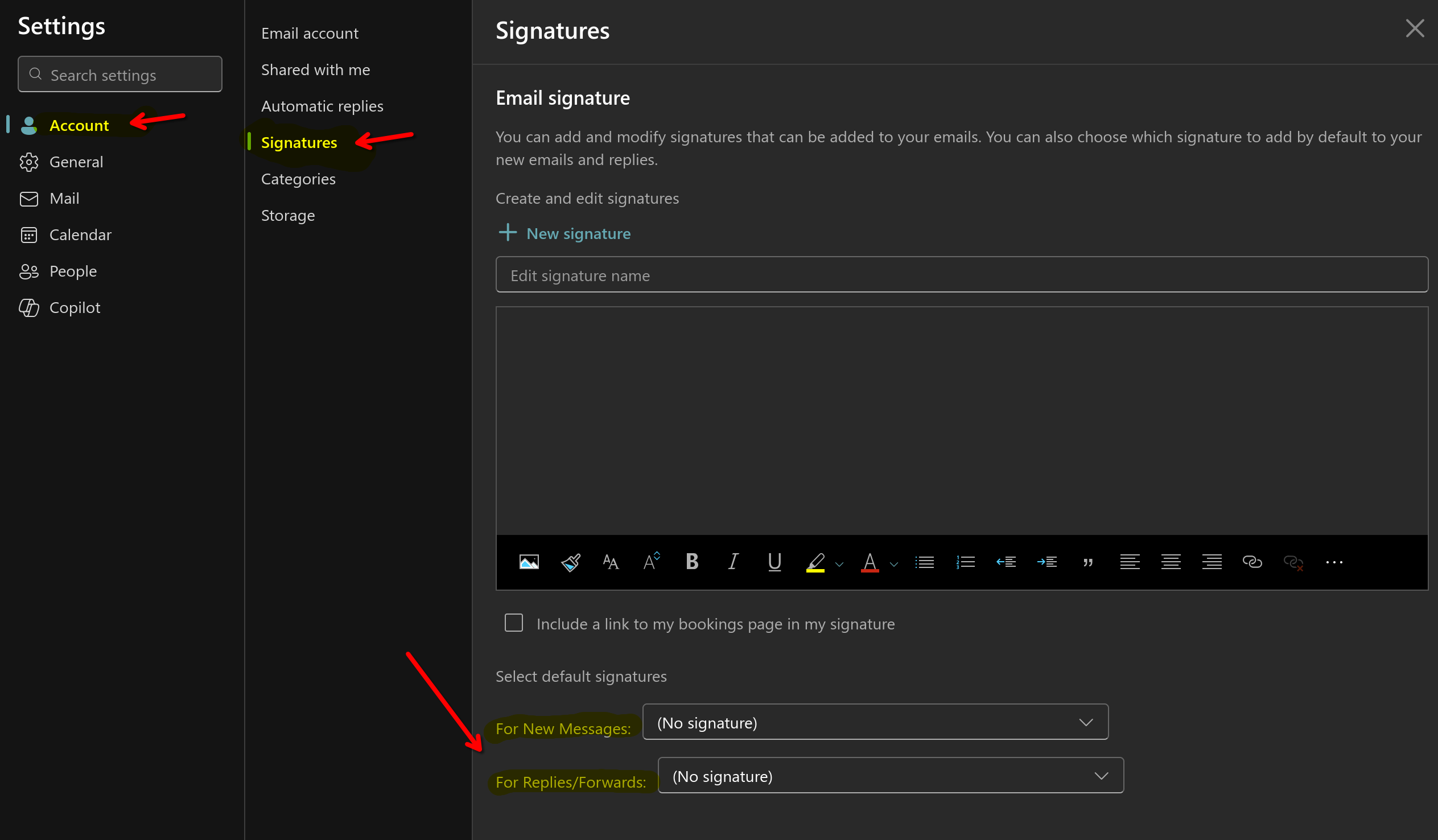
- Click on account, then signatures
Remove the Signature
- In the Email signature editor, delete any existing content from the signature field.
Disable Automatic Signature Insertion
- Below the editor, set both "for new messages" and "for replies/forwards" to 'no signature'.
Save Changes
Simply close the window to apply the updated settings.
Why is this necessary?
We use a service called Exclaimer; this service automatically adds a signature to any of your outgoing emails with your name, position and any contact information you have provided. While it may look like your email is going out without a signature on it, Exclaimer is intercepting the email, adding your signature to it, and sending it off to the recipient.
Bonus Tip:
If you would like to test and see if your signature looks correct, you can try emailing yourself, and you should see what the end result looks like. Of course, if you need any corrections to your signature, please let the IT department know!
Was this article helpful?
That’s Great!
Thank you for your feedback
Sorry! We couldn't be helpful
Thank you for your feedback
Feedback sent
We appreciate your effort and will try to fix the article