1. Log in to Outlook Web Access
Go to https://outlook.office.com/ and sign in with your Microsoft account.
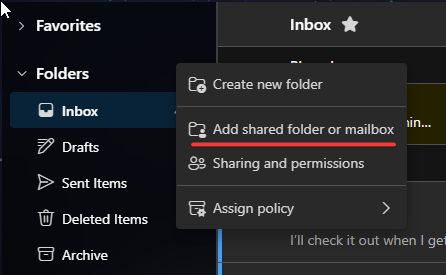
2. Access the Add Shared Mailbox Option
In the left-hand folder pane, hover your mouse over the “Folders” heading at the top of your folder list (above Inbox, Sent, etc.).
Click on the three dots (⋯) that appear to the right of “Folders.”
In the dropdown menu, select “Add shared folder or mailbox…”
3. Search for the Delegated Mailbox
Type the email address or name of the shared mailbox you want to add.
Select the correct mailbox from the suggestions, then click Add.
4. View the Shared Mailbox
It will appear in your folder pane underneath your personal mailbox folders.
You may need to wait a moment for the mailbox to load fully.
✅ Important Notes
You must already have permissions to access the shared mailbox (granted by the owner or administrator).
If you can't find the user using the instructions above, contact the IT Department.
This process only makes the mailbox visible—it does not grant permission by itself.
If you have the correct permissions (e.g., Send As or Send on Behalf), you'll be able to send messages from that mailbox too.
Optional: Open in a Separate Window
Click on your profile picture in the top-right corner.
Select “Open another mailbox…”
Enter the mailbox address and open it in a new browser tab or window.
Was this article helpful?
That’s Great!
Thank you for your feedback
Sorry! We couldn't be helpful
Thank you for your feedback
Feedback sent
We appreciate your effort and will try to fix the article