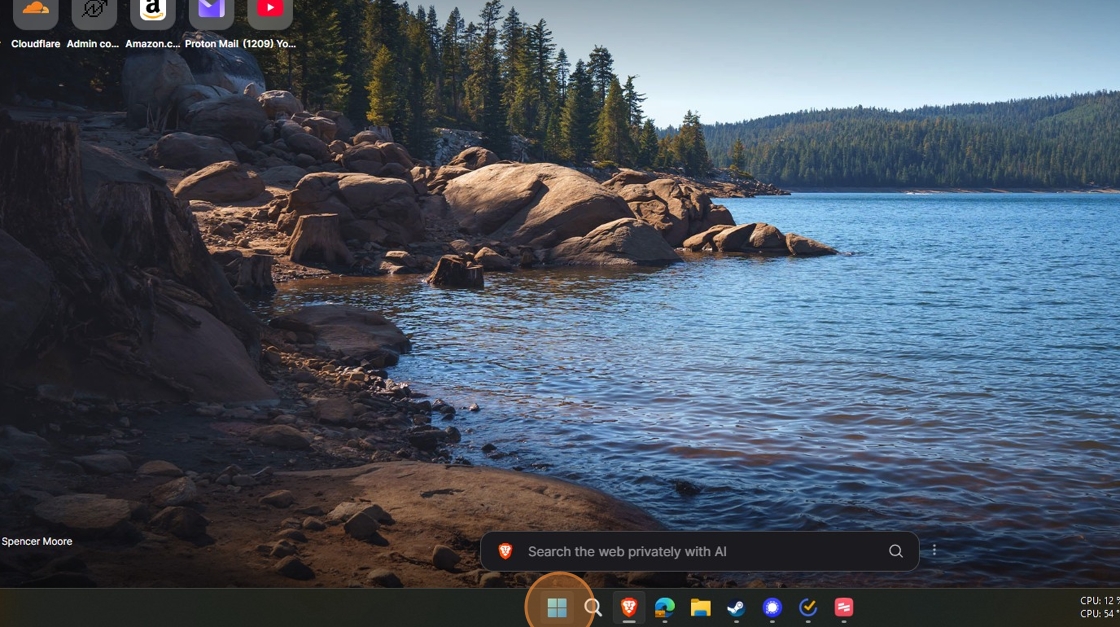
1. Click on the start menu in Windows
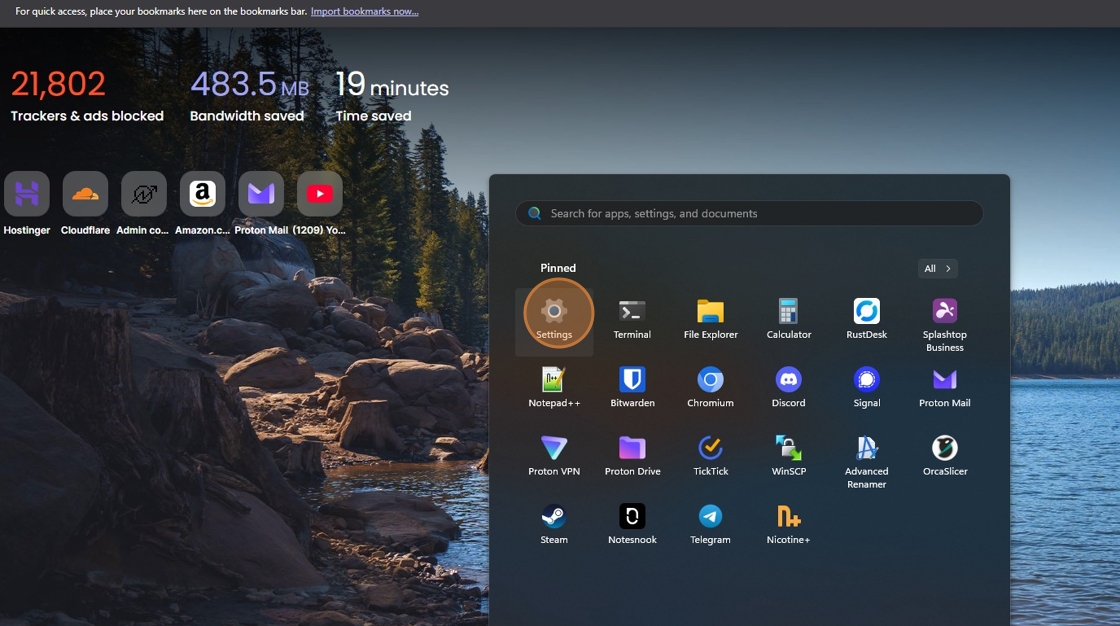
2. Click "Settings"
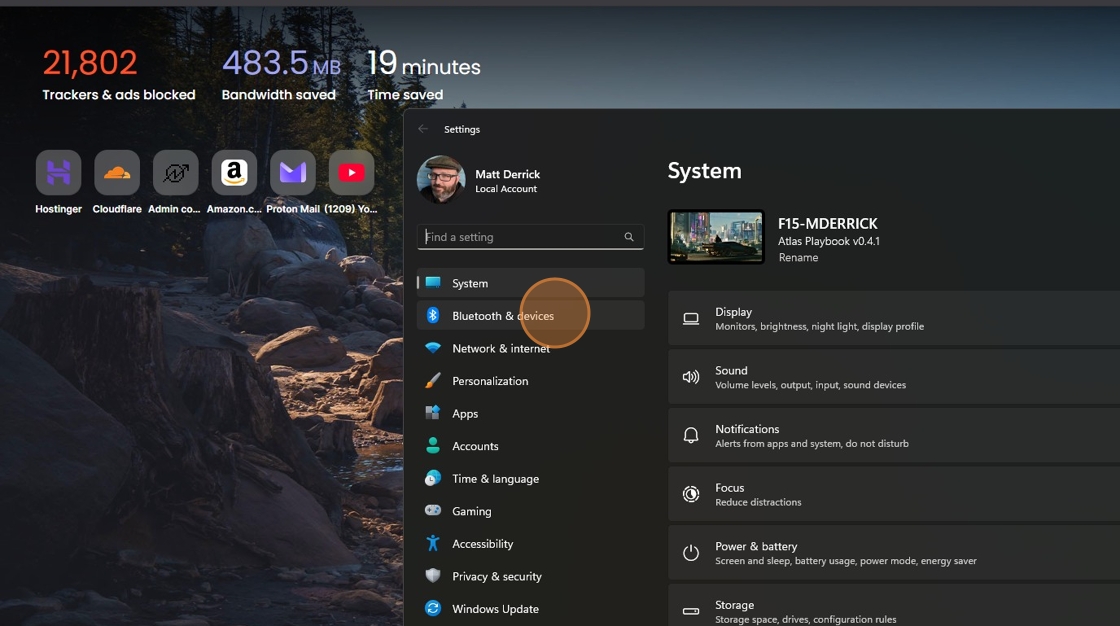
3. Click "Bluetooth & devices"
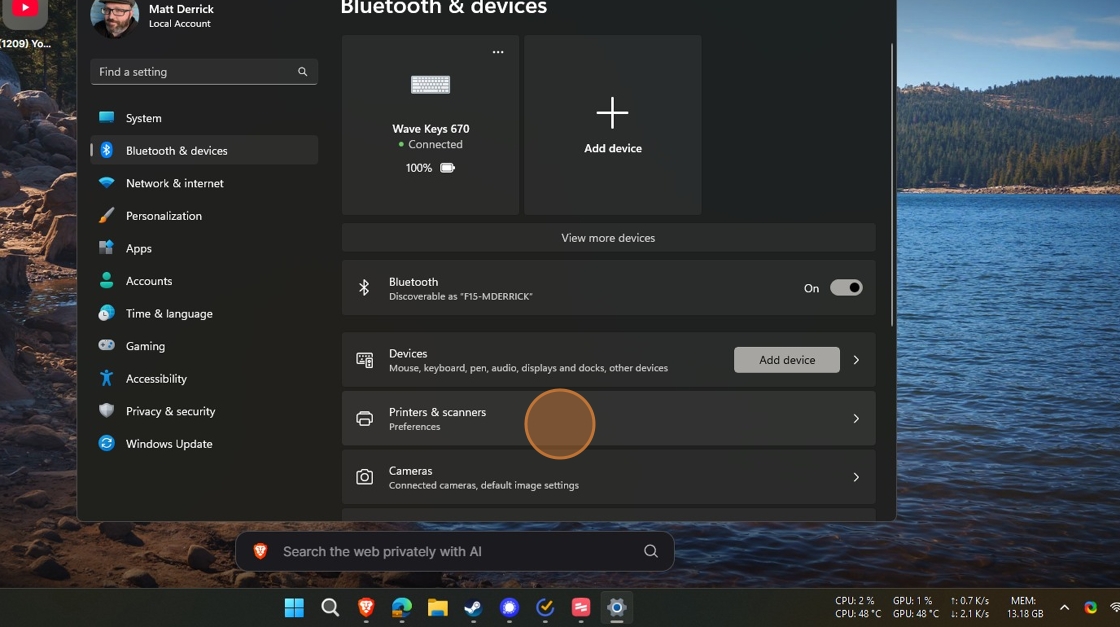
4. Click "Printers & scanners"
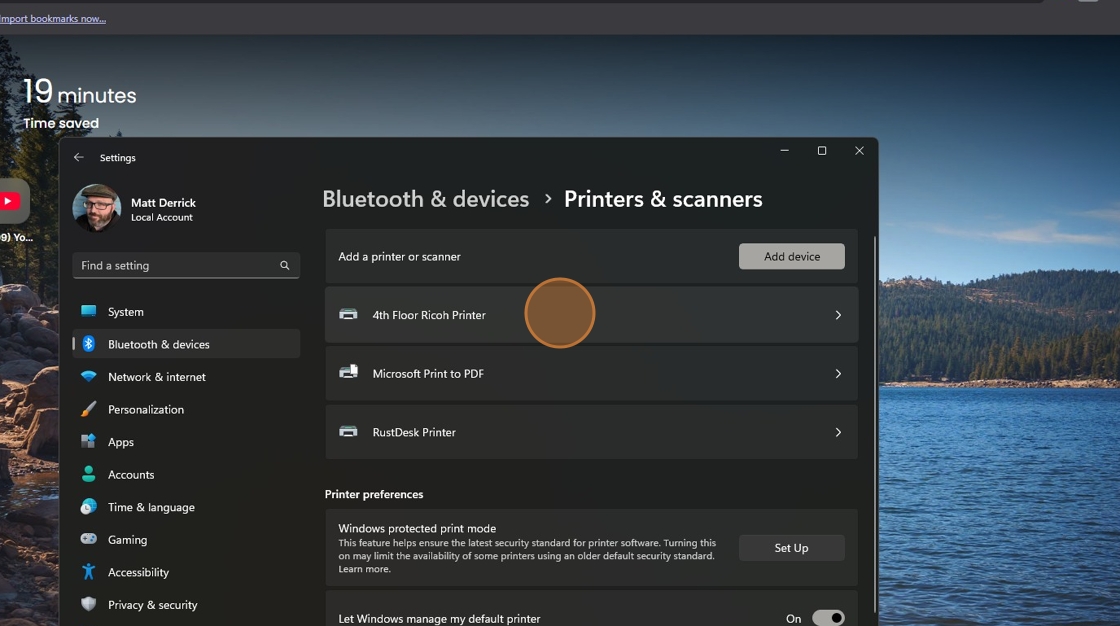
5. Click on the printer you want to rename
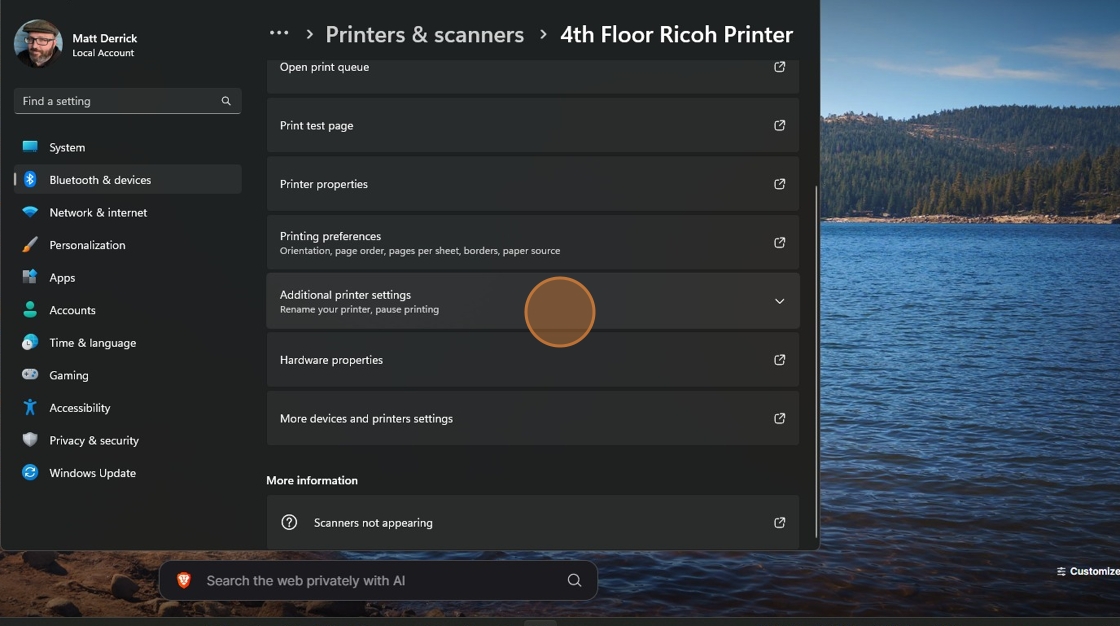
6. Click "Additional printer settings"
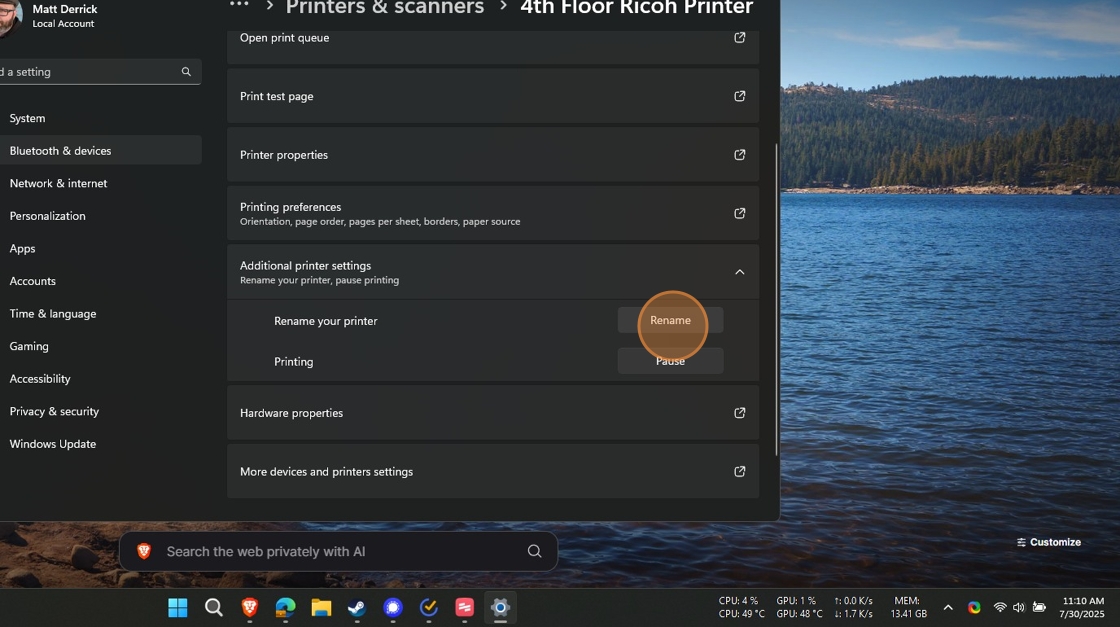
7. Click "Rename"
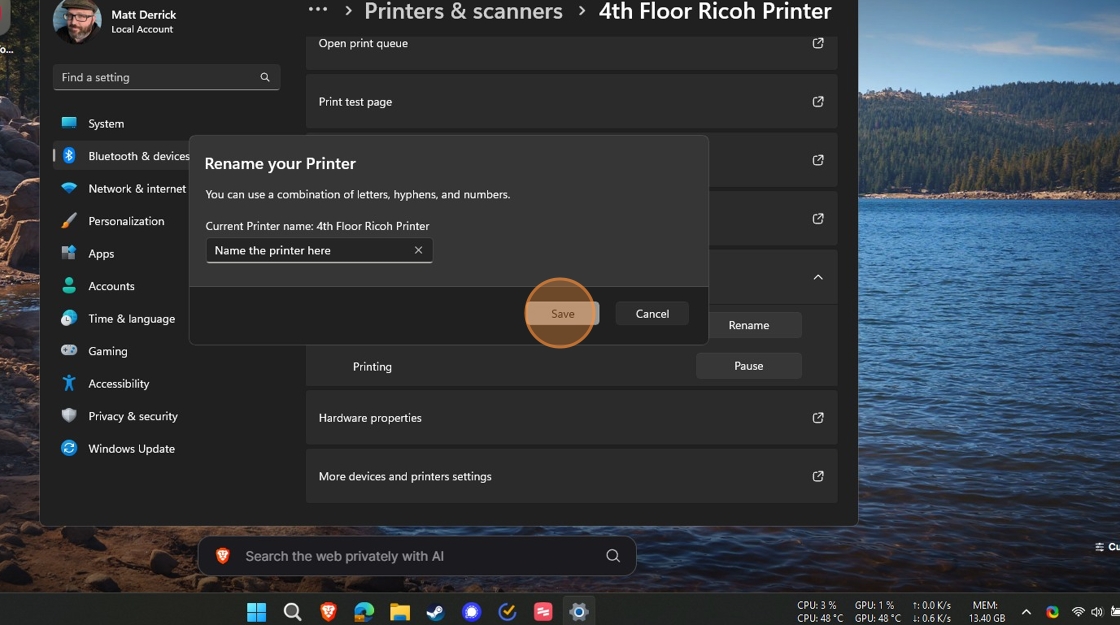
8. Click in the field labeled "Name your device"
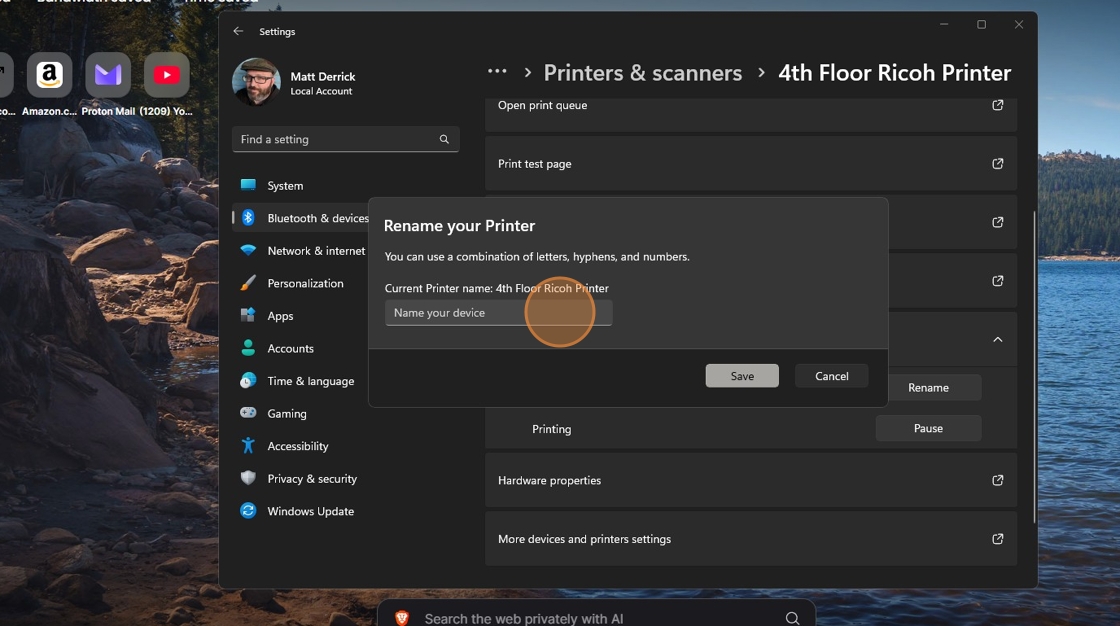
9. Type the new name of the printer, then click save
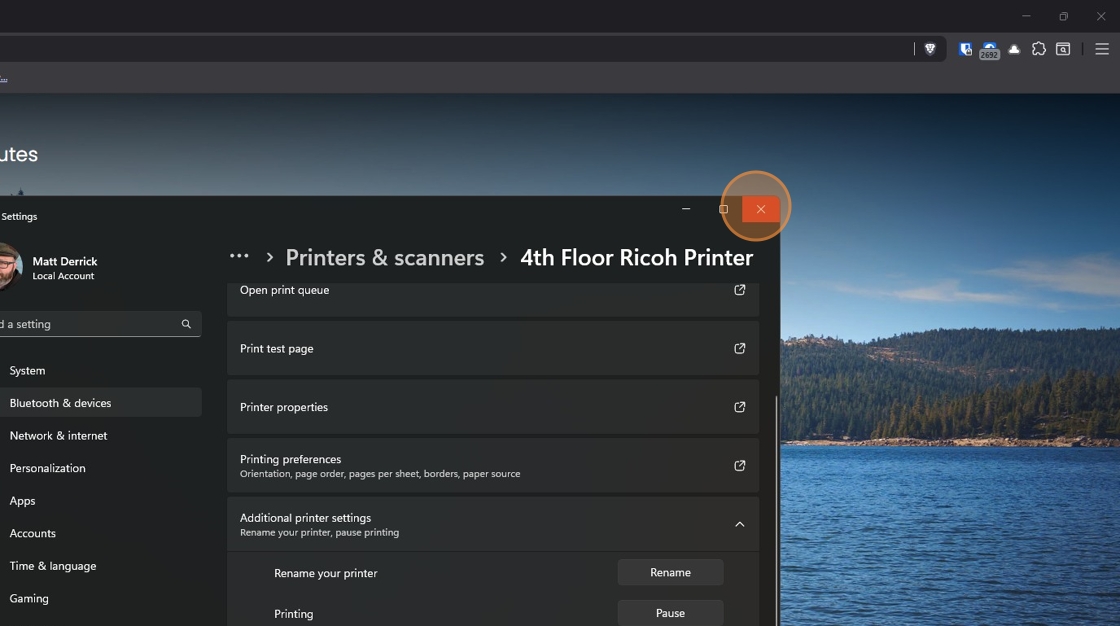
10. Click "Close Settings" and you're done!
Was this article helpful?
That’s Great!
Thank you for your feedback
Sorry! We couldn't be helpful
Thank you for your feedback
Feedback sent
We appreciate your effort and will try to fix the article